 ToolGrid AI
Workflows
How to crop an image to exact pixels without stretching it
Understand crop coordinates, check image boundaries and choose a transparent PNG workflow for rounded corners.
By ToolGrid AI Editorial Team · Published
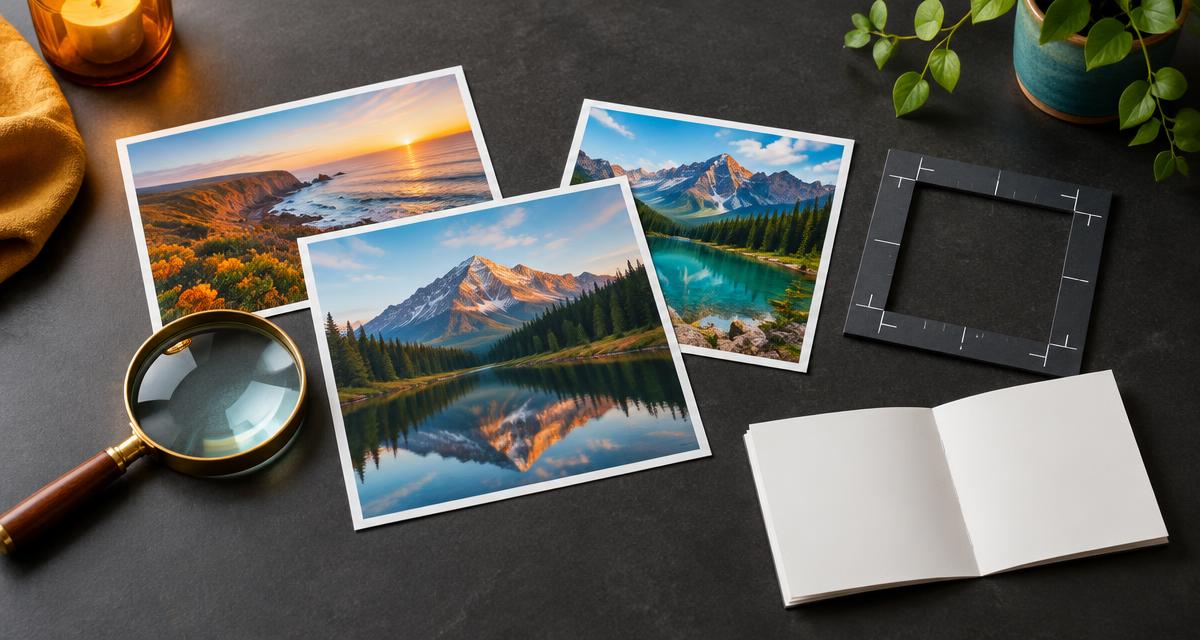
Cropping and resizing solve different problems
Cropping removes material around the subject. Resizing changes the dimensions of the whole image. If a profile service needs a square photo, cropping a square around the face is usually better than stretching a wide image into a square. Keep the original so you can choose a different crop later.
Our Image Cropper uses a rectangular selection defined by left offset, top offset, width and height. The offset is measured from the image’s upper-left corner. It does not offer automatic face detection or subject recognition.
A coordinate example
For a 1200 × 800 image, a centered 600 × 600 crop begins 300 pixels from the left and 100 pixels from the top. Enter x = 300, y = 100, width = 600 and height = 600. The resulting PNG should measure 600 × 600.
The arithmetic is simple: horizontal offset = (original width − crop width) ÷ 2, and vertical offset = (original height − crop height) ÷ 2. If an offset or size extends past an edge, the tool rejects the selection rather than producing a partly empty canvas.
Choose a crop before processing a batch
The same coordinates apply to every image in a batch. That works for similarly sized screenshots, but photos with different dimensions or subject positions may need separate jobs. A successful crop can still cut off a face if you chose coordinates without examining the image.
After downloading, open the output and check the subject, edges and actual dimensions. Browser image decoding can apply orientation information from supported source images; inspect the decoded image rather than relying only on a filename or camera specification.
When rounded corners need transparency
Rounded-Corner Image creates a PNG with transparent corners. A JPEG does not support an alpha channel in this workflow, so converting the result to JPEG will require a background fill or remove the transparency. Use PNG when you need the corners to reveal the page behind the image.
A rounded image remains rectangular as a file. Its corner pixels are transparent; it is not a new nonrectangular file format. Test the image on the background where you plan to use it.
Keep the output practical
Cropping does not invent missing detail. If the crop is too small for a large display, enlarging it later can look soft. Choose the largest crop that fits your intended composition, then resize a copy for the actual destination.
The tool exports PNG, so a photo can become larger in bytes even though it has fewer pixels. If file size matters and transparency is unnecessary, follow with Image Converter or Image Compressor and compare the result visually.
Sources
Related articles
Workflows
How to convert CSV to JSON without breaking commas, quotes or leading zeros
A practical workflow for turning a spreadsheet export into JSON, with examples for quoted cells, identifiers and malformed rows.
· 2 min read
Workflows
How to reorder or delete PDF pages without uploading your document
Fix a document’s page order, remove unwanted pages and check the output without confusing page labels with page positions.
· 2 min read
Workflows
How to check text color contrast with WCAG ratios
Use a free contrast calculation to check solid-color text, understand AA and AAA thresholds, and avoid misleading rounded results.
· 2 min read