 ToolGrid AI
Workflows
How to convert a PDF to Word for free (and when it won't work)
Turn a PDF into an editable Word document in seconds, understand why scanned PDFs behave differently, and fix common problems.
By ToolGrid AI Editorial Team · Published
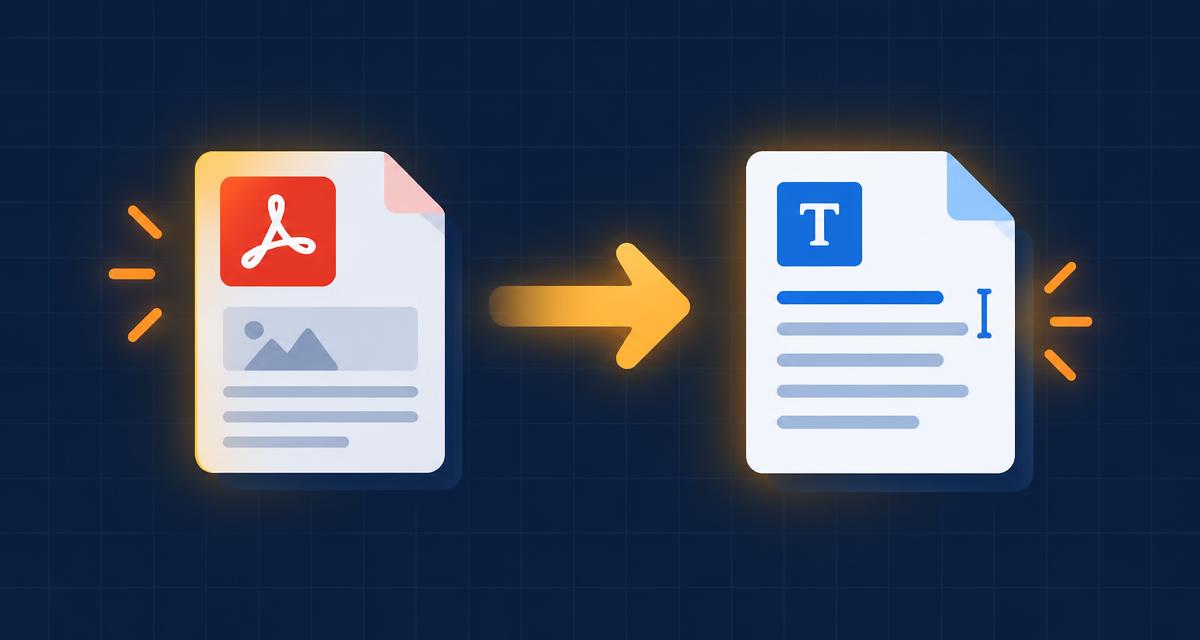
Two kinds of PDF
Some PDFs contain real text — usually ones exported from Word, Google Docs or a website. Others are just pictures of pages, created by a scanner or phone camera. Converters can read the first kind directly. The second kind needs OCR (optical character recognition) to turn the picture back into letters.
Quick test: open the PDF and try to select a sentence with your mouse. If you can highlight individual words, it has real text.
Convert a text PDF in three steps
1. Open our free PDF to Word tool at /tools/pdf-to-word. 2. Drop in one or more PDFs. 3. Click Convert to Word and open the .docx file in Microsoft Word, Google Docs or LibreOffice.
If you pick several PDFs, each one becomes its own Word file and they download together as a ZIP.
What carries over
Our browser-based converter keeps the text and the page breaks. Complex layouts — columns, tables, images and special fonts — are not rebuilt. For a contract or essay that's usually all you need; for a designed brochure you'll want to re-apply formatting.
Scanned PDF? Use OCR
Microsoft Word can open many PDFs directly and convert them, and Google Drive can open a scanned PDF with Google Docs, which runs OCR. Both are free options if you already have an account. Always proofread OCR output — it can misread numbers and names.
Need just the text?
If you only want to copy words out of a PDF, PDF to Text at /tools/pdf-to-text is faster: it shows all the text on screen with a copy button.
Going the other way
To share a finished document that looks the same on every device, convert it back with Word to PDF at /tools/word-to-pdf, then add page numbers or a DRAFT watermark with our other free PDF tools.
Sources
Related articles

Workflows
The Pomodoro Technique: a simple guide to focusing for longer
How 25-minute focus sessions work, how to adapt them to your day, and how to pair them with AI tools without getting distracted.
· 2 min read
Workflows
How to summarize long PDFs with AI (without missing what matters)
A practical workflow for turning reports, papers and contracts into accurate summaries using an AI assistant.
· 2 min read

Workflows
How to repurpose one blog post into a week of content with AI
A step-by-step workflow for turning a single article into social posts, a newsletter, a short video script and more — without sounding robotic.
· 2 min read